Thursday, October 15, 2015
Monday, October 12, 2015
Posted by xjayzier | Category : Tips and Tricks
Do you want to turn your android phone into a wireless camera to monitor something? You can now broadcast live videos from your android phone and view it through your PC or another phone.
Things you will need:
- Android phone with a rear camera (use as the source of video stream)
- PC/Laptop or another android phone (the receiver or viewer of video stream)
- IP Webcam application
- Wifi network (it acts as the bridge for transmission of video stream)
- Technical knowledge is a must.
Setup of video source: The Android Phone
- Connect your android phone to Wifi Network.
- On your android phone, install the IP Webcam application which can be downloaded on Playstore.
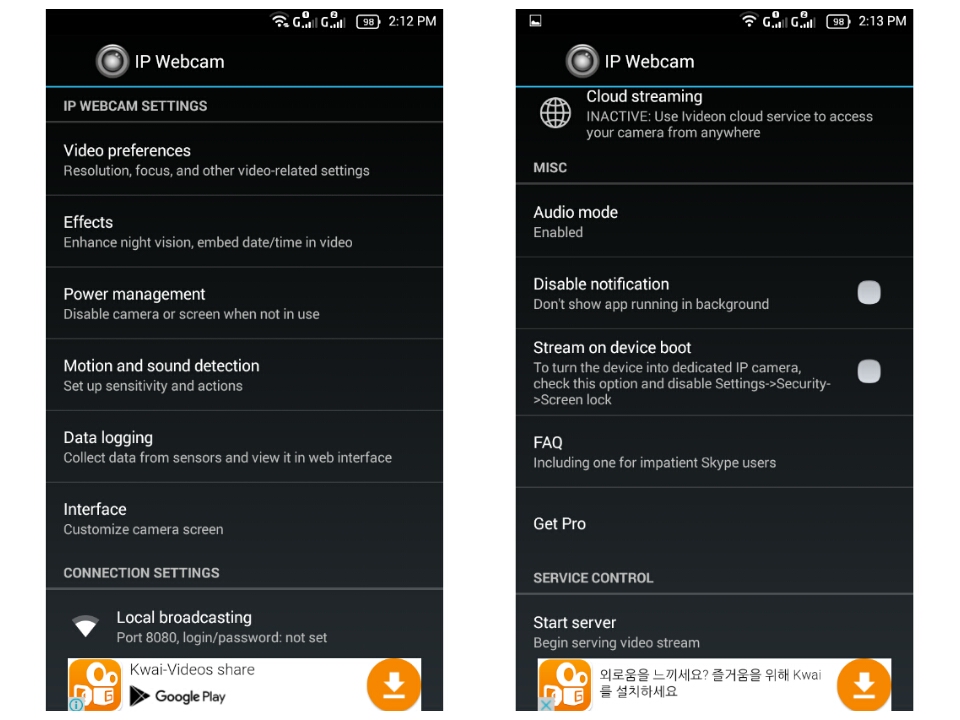
- Open the application and configure the setup on what settings you want, it depends on you.
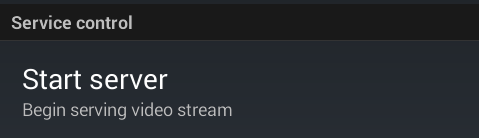
- Scroll down until you found the Start Server option and then click it.
- Your phone is now ready to transmit the video stream, copy the ip address that will be shown on the bottom part. Example: http://192.168.8.101:8080
Setup of receiver or viewer of video stream:
If you want to use your PC/Laptop as the receiver/viewer:
- Proceed to your PC/Laptop and connect it to the same Wifi Network
- Open the internet browser, it can be Google Chrome or Mozilla Firefox.
- Input the ip address that you have copied from IP Webcam application to the address bar of your internet browser and click enter.
- This will appear on the internet browser:
- In order to view the video stream, click Video Renderer : Browser.
If you want to use your another android phone as the receiver/viewer:
- Connect the android phone to the same Wifi Network.
- Download and install the application called TinyCam Monitor, it is free to download on Playstore.
- <updating and still testing>
Posted by xjayzier | Category : The Box
This promo allows you to use 1 Gb (1000 Mb) Internet data and 1000 sms texts to Globe/TM without wasting a lot of money for it. You just need to load P70.00 and the promo is valid for 7 days.
Here's how:
- Load P70.00 from any Autoload Max Retailers.
- Just text GOTSCOMBODD70 and send to 8888.
- Wait for the confirmation message showing that you're now registered to promo. Enjoy.
- To check your remaining data, text GOSAKTO STATUS and send to 8888.
This is applicable for internet surfing, online games, chattting, video streaming, online voice/video call and downloading. Just insure that you still have data left to continue using this promo.
Posted by xjayzier | Category : The Box

Check it first:
- Your phone must be connected to Wifi or registered to unlimited surf internet promo. This video live stream needs an active internet connection in order to play.
- Download and install the latest version of IWanTV application, it's free to download at Playstore.
- You must register an account on IWanTV app in order to access and play the live stream or tv replays.
OK, you're now ready to watch the live stream..
- Open the IWanTV app and log on using your email and password you've used when you register for a new account.
- Click the Live dropdown menu then choose ABS-CBN.
- Wait until the video streaming plays.. ENJOY WATCHING..
Then you must read these:
- You don't have android phone but an iPhone? It is also working, just follow the instructions above and relate it to your phone.
- Expect the video buffering at some time if you have slow internet connection.
- If you are using unlimited surf internet promo, strong 3G/4G signal is required.
- This live stream is not totally live because there's 3-10 mins delay from the original TV broadcast.
- You don't have android phone but an iPhone? It is also working, just follow the instructions above and relate it to your phone.
- Expect the video buffering at some time if you have slow internet connection.
- If you are using unlimited surf internet promo, strong 3G/4G signal is required.
- This live stream is not totally live because there's 3-10 mins delay from the original TV broadcast.
Friday, March 21, 2014
Posted by xjayzier | Category : Tips and Tricks
Some of the virus nowadays has the capability to hide files or folders on a USB Flash Drive and it makes clone files with the same name and icon that pretend to be the original files or folders, this is where the virus is hidden. Most of the anti-virus can detect this kind of virus and remove it but it left the original files or folders gone or hidden. By following this tutorial, you can easily fix and unhide the files or folders on the USB Flash drive that hidden by a virus.
- Plug your USB Flash Drive on PC (you must know the drive letter, Example: E:/), be insure that it's already scanned by an anti-virus and it considered virus-free.
- Open the Command Prompt application (if you're using Windows 7, Run it as Administrator).
- Type the following:
X:/
(Note: change X with the drive letter of your USB Flash Drive)
- Then input this:
attrib -s -h /s /d *.*
- Now check your USB Flash Drive if the files and folders appeared.
Sunday, March 16, 2014
Subscribe to:
Posts (Atom)